


04-13-2026, 01:19 PM
(This post was last modified: 04-13-2026, 01:28 PM by Hugh Wallington.)
Although I have been happy with how PicoPDF has handled the extraction of Songs from Albums, I have not been happy with PicoPDF as a PDF Reader as not all the pages I have been looking at have been that clear.
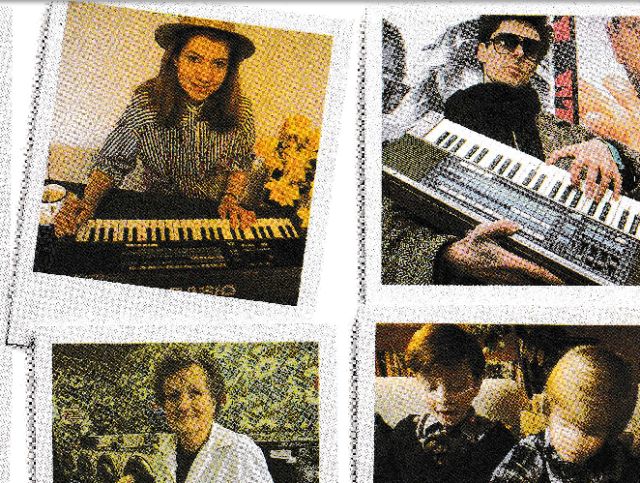
I have taken screenshots of Creative Keyboard – Songbook 2 .. Page 1 (this page has pictures) and compared the PicoPDF Reader with other PDF Readers I have.
This is what I get with PicoPDF ...
... and with all the others (without exception) I get this:
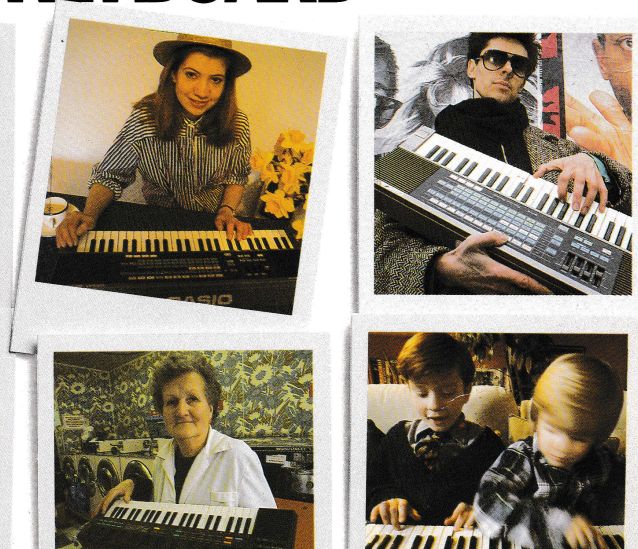
And this second one is also how this page looks when I have handled it through PicoPDF and SAVED it .. and viewed it with all the other PDF Readers. But with PicoPDF it still looks like the first one .. all pixelated. I have come to the conclusion that PicoPDF is fine when using it as a PDF EDITOR, but not as a READER.
But then whilst looking on line for a PDF Reader I came across PDF24, which is not only a READER but a PDF EDITOR as well .. and it’s completely FREE.
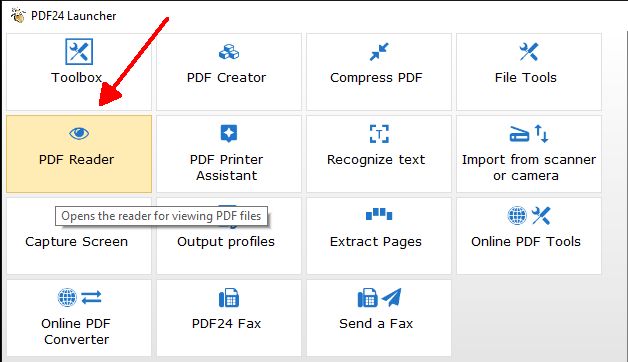
So I have Downloaded the program (App) and set this up to read all my PDFs by ‘default’. Also, I can run the program (App) to EXTRACT all those Songs from Albums. Below are screenshots of the relevant parts of the program I need to do this.
Once downloaded, there are two icons I can click on.
PDF24 Launcher
PDF24 Toolbox
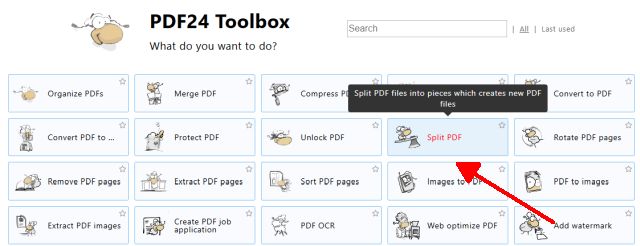
Once you have split the Album up into individual PDF Pages you Merge the Pages you need for an individual Song.
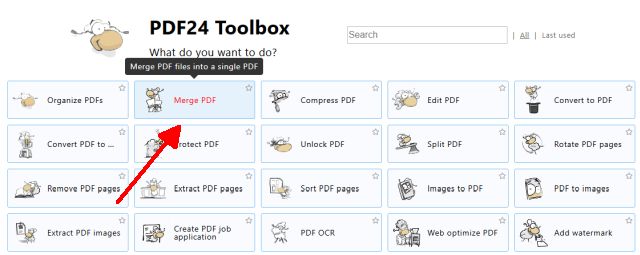
Click on Merge and it sets you up for finding the PDFs you want to Merge. As before you’ll have to view all the Pages of the Album beforehand, make a note of the Songs in it (I PRINT OUT the INDEX, Page 2, and work using that), the key the song is played in, and the Page Numbers involved.
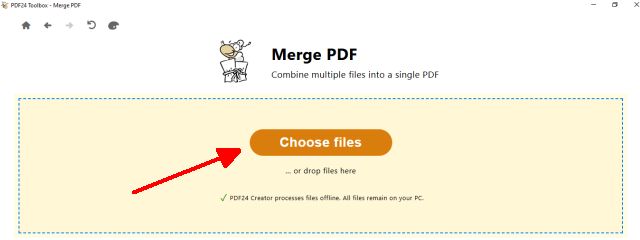
Click Choose files. Highlight them so they are blue .. ie. click the first one, hold down the Shift key and click on the last one.

Click Open.
It’s showing the Pages you are Merging. You can change the order of the pages by dragging and dropping them on the screen .. indicated by the blue arrow. If you can’t identify a page, clicking the + at the top will bring it up full screen.
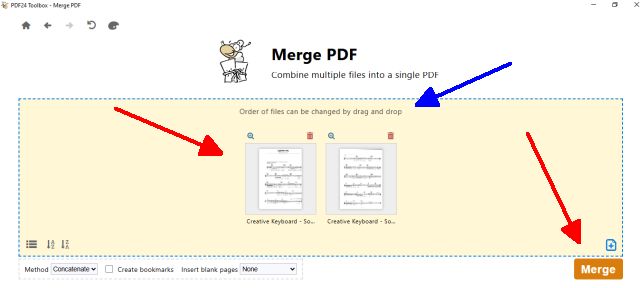
Then click Merge.
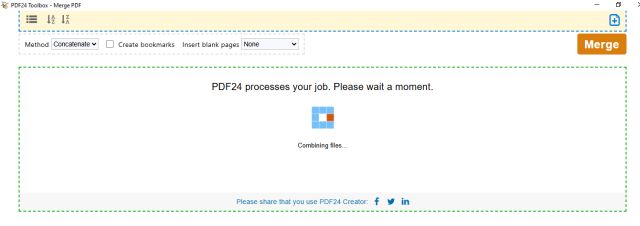
In the next screen you SAVE it. Make a note of the Restart button (indicated by the blue arrow). You click this when you want to do the next song. It takes you back to the Merge screen so you can choose another two (or more) PDFs you want to Merge.
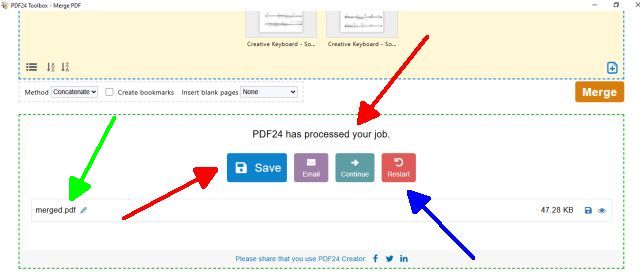
You need to give your ‘merged’ PDF file a name .. the Title of the Song and the Key it’s played in. You can do this either by clicking on the ‘pencil’ (as indicated by the green arrow) and then clicking Save; or click Save first and the screen will be showing merged.pdf in blue. Type the Song Title over the top of that. Also check where the file will be saved, and if necessary change the PATH so it saves it where you want it
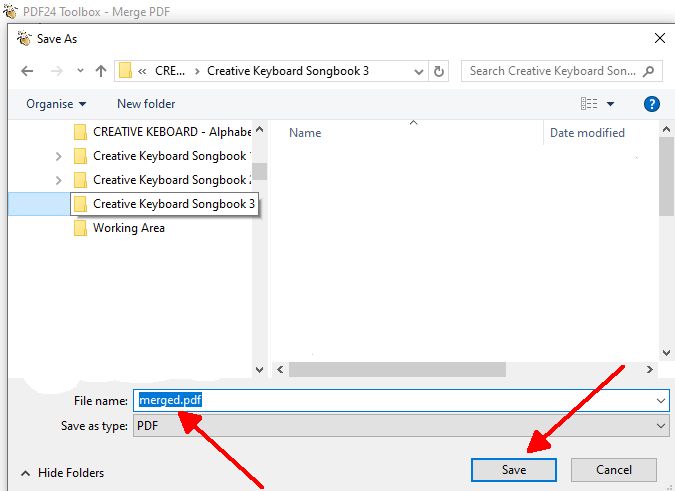
Then click that Restart to do the next one.
Graham UK suggested I try Foxit PDF Reader as that is the one he uses and finds it works well. So I have downloaded this one as well, and like all the others (apart from PicoPDF) the pictures in that PDF above are very clear.
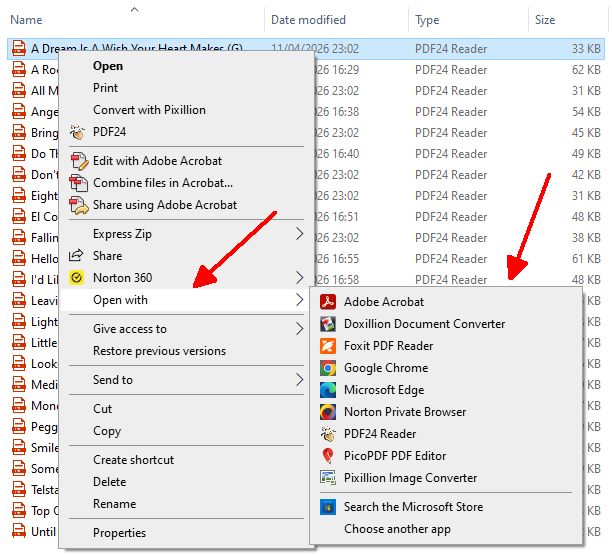
If I click on a PDF, do a right-click and choose Open with I get a list of all the ‘Readers’ on my computer that will open it. Spoilt for choice!
Hugh
I have taken screenshots of Creative Keyboard – Songbook 2 .. Page 1 (this page has pictures) and compared the PicoPDF Reader with other PDF Readers I have.
This is what I get with PicoPDF ...
... and with all the others (without exception) I get this:
And this second one is also how this page looks when I have handled it through PicoPDF and SAVED it .. and viewed it with all the other PDF Readers. But with PicoPDF it still looks like the first one .. all pixelated. I have come to the conclusion that PicoPDF is fine when using it as a PDF EDITOR, but not as a READER.
But then whilst looking on line for a PDF Reader I came across PDF24, which is not only a READER but a PDF EDITOR as well .. and it’s completely FREE.
So I have Downloaded the program (App) and set this up to read all my PDFs by ‘default’. Also, I can run the program (App) to EXTRACT all those Songs from Albums. Below are screenshots of the relevant parts of the program I need to do this.
Once downloaded, there are two icons I can click on.
PDF24 Launcher
PDF24 Toolbox
Once you have split the Album up into individual PDF Pages you Merge the Pages you need for an individual Song.
Click on Merge and it sets you up for finding the PDFs you want to Merge. As before you’ll have to view all the Pages of the Album beforehand, make a note of the Songs in it (I PRINT OUT the INDEX, Page 2, and work using that), the key the song is played in, and the Page Numbers involved.
Click Choose files. Highlight them so they are blue .. ie. click the first one, hold down the Shift key and click on the last one.
Click Open.
It’s showing the Pages you are Merging. You can change the order of the pages by dragging and dropping them on the screen .. indicated by the blue arrow. If you can’t identify a page, clicking the + at the top will bring it up full screen.
Then click Merge.
In the next screen you SAVE it. Make a note of the Restart button (indicated by the blue arrow). You click this when you want to do the next song. It takes you back to the Merge screen so you can choose another two (or more) PDFs you want to Merge.
You need to give your ‘merged’ PDF file a name .. the Title of the Song and the Key it’s played in. You can do this either by clicking on the ‘pencil’ (as indicated by the green arrow) and then clicking Save; or click Save first and the screen will be showing merged.pdf in blue. Type the Song Title over the top of that. Also check where the file will be saved, and if necessary change the PATH so it saves it where you want it
Then click that Restart to do the next one.
Graham UK suggested I try Foxit PDF Reader as that is the one he uses and finds it works well. So I have downloaded this one as well, and like all the others (apart from PicoPDF) the pictures in that PDF above are very clear.
If I click on a PDF, do a right-click and choose Open with I get a list of all the ‘Readers’ on my computer that will open it. Spoilt for choice!
Hugh
It's all about the music!
![[-]](https://chellos-keyboard-players-club.com/images/collapse.png)