

01-16-2025, 12:49 AM
(This post was last modified: 10-13-2025, 11:47 PM by Hugh Wallington.)
MULTITRACKING using the AUDIO RECORDER
We all know that one can multitrack using the MIDI RECORDER .. but this will only sound ‘correct’ if it is all done on the keyboard it was created on. This is because the MIDI picks up the sounds from that particular keyboard and the same sounds won’t necessarily be available on a different keyboard. So if you want to multitrack a piece you are playing on your own keyboard, then yes, you can record it with the Midi Recorder .. and add another track into what you have done.
An AUDIO file on the other hand (WAV or MP3) will have the correct voicing when played on any device, so by multitracking with an AUDIO file you can open up a whole new world of being able to collaborate with other musicians whatever instrument they have.
Most Yamaha keyboards (but not the PSR-SX Series) give you the option to do Audio Multi Recording, and their explanation for doing this is in their Reference Manual. The Owners Manuals and Reference Manuals for all the Yamaha keyboards are available to download from the following LINK.
https://uk.yamaha.com/en/products/conten...oards&l=en
The Genos2 Reference Manual is on Page 1; and the Tyros Manuals start on Page 25. Their chapter on Audio Multi Recording assumes that you will be doing the whole recording from start to finish in one session, including any multitracking. What I had in mind for using this feature can be summarised as follows:
1. Load an existing AUDIO file (WAV or MP3) into the AUDIO RECORDER. This can be one that you had recorded previously and now want to add in an extra track; or one that has been created on a different keyboard.
2. Press the RECORD and your keyboard will tell you that you can’t record to this audio file. Do you want to turn it into a MULTI recording file ie. ending in .aud? Say ‘YES’. You will find that this file can only be handled on your own keyboard. If you have a Memory Stick plugged in you will find this does not appear as somewhere to COPY and PASTE it to.
3. Record your extra track as you listen to the original recording.
4. STOP the recording when you get to the end .. but don’t be too hasty in doing that. There is nothing worse than for a recording to be ‘chopped off’ before the final sounds have died away.
5. What you have done has actually been set up as two separate recordings .. so you can ‘UNDO’ what you have done and do it again.
6. Finally, when you are happy with your recording you have to MIXDOWN the two tracks into one (which will be a WAV/MP3 file in STEREO).
To show you how all this works, I am going to add a BASS PART to Michael Row The Boat Ashore.
First, have a listen to what this piece sounds like using PRESET STYLES.
The STYLES I have used are EasyListening; BigBandFast2; and 6-8SlowRock1.
Listen in particular to the BASS part.
https://app.box.com/s/p9lufy1cvt8oku0t4zglsl9udy22slz4
The bass player has made no effort to play a bass that ‘fits the song’.
To hear a ‘proper’ bass to Michael Row The Boat Ashore that does ‘fit the song’, just listen to the bass player in this YouTube clip of the original. He does plenty of 'walk ups' .. and these really make the song.
The Highwaymen - Michael (Row The Boat Ashore)
As I am going to be creating a BASS LINE and don’t want to compete with the BASS PART from the Style, I will start by recording the song with no bass part (ie. I have turned the BASS PART in the STYLE to OFF) and this will be the AUDIO FILE I will be using in this demo
I have now done this and put the MP3 file on box.com. You can listen to it and download it from here.
https://app.box.com/s/ck5wrevfkifhpzacent6fn2560xrkxjz
I have called my track MichaelRowNoBass.mp3. Maybe put this file onto a Memory Stick and follow with me the steps I am taking to multitrack this song
With this file on a Memory Stick I have inserted the Memory Stick into my Tyros 4.
To find the file, press the SELECT button in the AUDIO RECORDER/PLAYER. Pressing that button three times gives you three (MODE) options .. MULTI, SIMPLE and PLAYLIST. The one we want is SIMPLE.

The Audio File is on USB1, so find it and and click to highlight it.

This is now set up ready to ‘Play’ in the AUDIO RECORDER. It is an mp3 file.
Next, press the RECORD on the AUDIO RECORDER/PLAYER. Just the REC button .. not the RECORD and STOP buttons together .. that is for making a NEW AUDIO recording, and we're not doing that.

The RECORD button does not flash! What does happen is a message comes up to say, "Hang on a minute! You can't RECORD to here! This is a SIMPLE recording! You can only record over the top of an existing AUDIO file if it is a Multi Track Audio File (ie. it ends in .aud .. not WAV or MP3). Do you want to convert this file to a Multi Track recording file?".

Click YES and it will convert it.


Click OK.
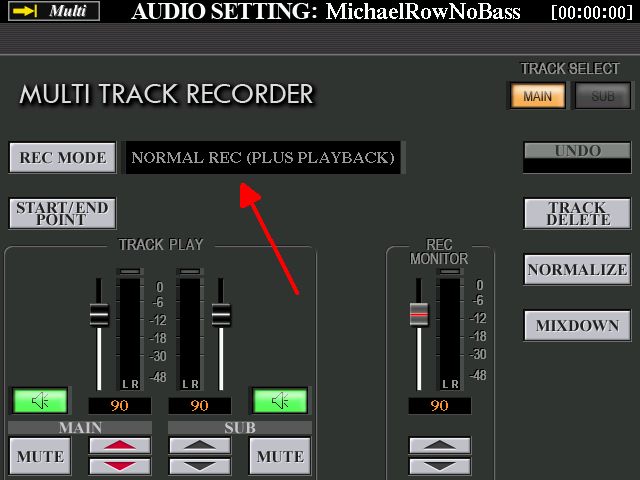
You are now in the basic MULTI TRACK RECORDER screen .. but have to make one important change before proceeding.

The REC MODE (as indicated by the red arrow) is by ‘default’ set to NORMAL REC.
This is the setting you would have it on if you were recording something new from scratch. If you started playing something and recording it you would hear it as you were playing .. but this is not what we are doing. We want to hear the track that’s already on there so we can ‘play along’ with it.
Click the button next to REC MODE and you get some drop-down options.

By clicking the appropriate buttons, move down one so you’re on NORMAL REC (PLUS PLAYBACK).

Press the EXIT key.

That’s better! We now have the MULTI TRACK RECORDER screen set up as we want it .. to be able to hear the existing track as we record with it.
Next, we have to choose a VOICE for RIGHT 1 (R1) to play the BASS track .. and check the VOLUME setting.

The VOICE chosen by ‘default’ is PIANO.

But we don't want a PIANO!
So change the VOICE CATEGORY from PIANO to BASS.
Press the BASS category in VOICE and choose a BASS VOICE.
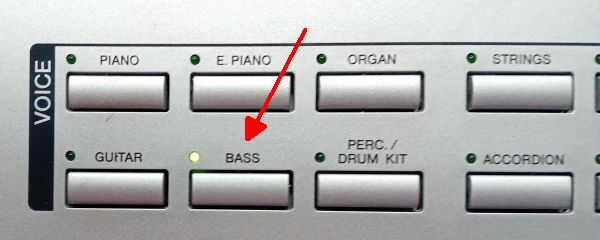
I have chosen MiniSub on Page 4.

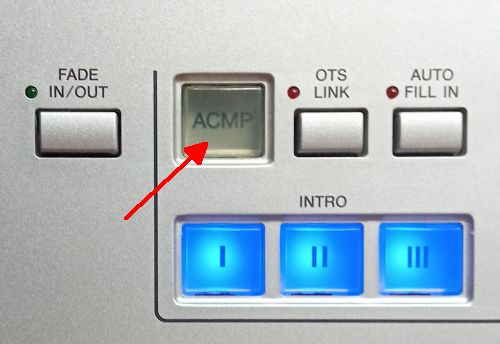
Make sure the ACMP (Accompaniment) button is OFF (ie. it is not lit up).
We don't need the ACMP button on as we are not setting up the keyboard to play something using a Style. Having the ACMP button OFF ensures that R1 plays your chosen VOICE from top to bottom of the keyboard.
Check the VOLUME LEVEL of your BASS. The ‘default’ VOLUMES across the board are 100. By pressing the BALANCE button you can change the VOLUME of RIGHT 1 (the Bass Voice). I did want the bass player to be heard, so upped the volume to 110.
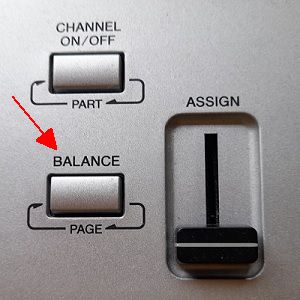

Now you have your keyboard set up to both listen to the WAV track and play a bass line along with it .. give it a go!
So long as you haven’t pressed the REC button again and the red light on REC is not flashing .. you are not recording anything. You are in ‘practice’ mode. You can START and STOP the ‘playing’ of the file, with you ‘playing along with it’ as often as you like. Each time you press the STOP button it will start again at the beginning.

It really is quite fun to 'play along with a band' (as those that have played in a band will tell you). And to gel with the band 'playing a part by ear' is something else again.
Now that you have practised putting in a BASS by 'playing with the band', here is how to get that bass part into the mix and end up with a WAV file that everybody can listen to. Bear in mind that once you have put in this bass part, you can listen to what you have done before SAVING it .. and if you don't like what you hear you can do it again .. and again .. and again, until you are satisfied with the final result. This applies to any WAV file you may have of any song, and any VOICE PART you want to add in to the mix (eg. STRINGS, GUITAR, etc.).
Press the REC again. This time the red light on the REC will be ‘flashing’ indicating that you are about to make a recording.

As soon as you press the PLAY the recording will start ...

... and both the REC and the PLAY lights will be ‘ON’ while you are recording.
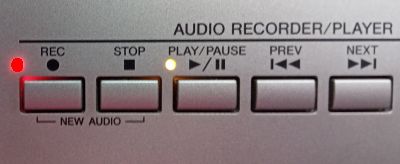
On that first beat of the bar play the BASS PART you have been practising .. and keep going right to the end!
When you have finished, press the STOP button .. but not too early! Better to have a bit of silence at the end of the piece than to have the song 'chopped off' before all the sound has died away.
Now press the PLAY button again, and this time it will 'play back' what you have just done. And this time, the REC won’t be flashing as you will be ‘playing it back’ and not ‘recording’.

Basically, there are two separate tracks that you are listening to .. 'playing together'. If you made a mess of it, click the UNDO (which is now activated) ...

... and the BASS part that you have just recorded is deleted.
You get this message while it’s doing it.

When it’s done, press OK.

And if you change your mind .. or didn’t mean to delete your bass part .. you can put it all back by clicking REDO. They think of everything!

Now it's 'undone' you have to press the REC again (wait for it to start flashing), and then the PLAY .. and off you go again. You can do this as many times as you like.
Once you are satisfied with the final result, you need to get these two tracks permanently joined as one AUDIO file.
Doing this is called MIXDOWN.

Click MIXDOWN and you get this.

It is showing the FILE NAME as MichaelRowNoBass.
To change the file name, click FILE NAME.
You can then put in a name of your choice the way you normally do file names.
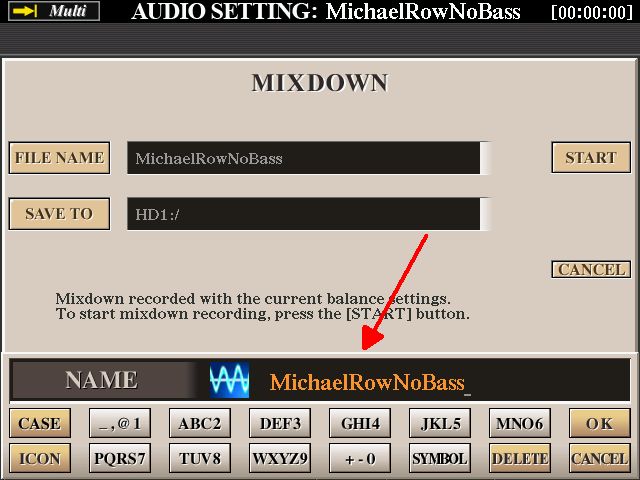
Press and HOLD the DELETE down to remove the name showing, and create a name of your own (eg. as the one below for this song).
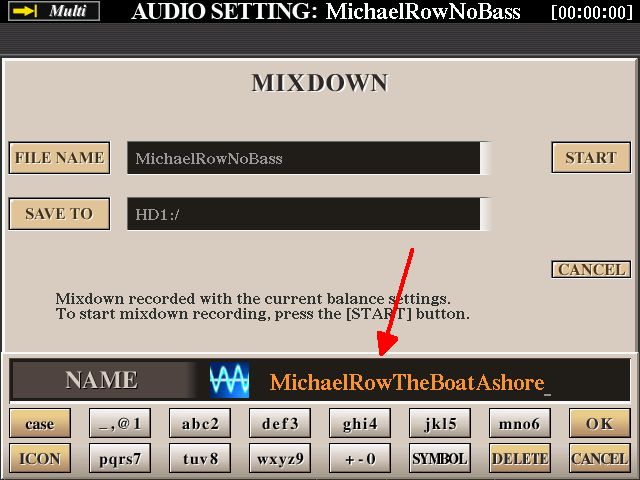
Press the OK and it will put your name into the box.

The next consideration is where to SAVE it.
It is saying SAVE TO HD1:/
Press the SAVE TO and you can choose where you want it SAVED.
This is done by selecting the TAB page at the top.
I am saving it to my Memory Stick.

Press OK.
The box is showing all the correct information now, so click START and the MIXDOWN will start.

It will show you how far it has got by a blue line that moves across the screen as it is doing it.

To check that the file has indeed ended up on my Memory Stick I have looked .. and it’s there.
My Tyros 4 always does recordings as WAV files, so I have used Audacity to convert it to an MP3.

Here below is the final result of what I have been doing above. I’m no bass player .. but am very pleased with how this has turned out.
https://app.box.com/s/nd6szqo8of1n2mrdtmpwcfu8uppctur4
It is also worth noting that your keyboard has also SAVED your MULTI file (.aud file) in SELECT - MODE - MULTI. When it does this it just keeps the original file name. So although the file name says MichaelRowNoBass, it is the track you have just been listening to .. with the bass. By clicking NAME you can change the name to something else.

The reason why it has done this is because we are talking about MULTITRACKING here. You may wish to add another track to the mix, and if so, you can start straight off with the MULTI file rather than the WAV file we have just created, which you would have to convert.
Hugh
We all know that one can multitrack using the MIDI RECORDER .. but this will only sound ‘correct’ if it is all done on the keyboard it was created on. This is because the MIDI picks up the sounds from that particular keyboard and the same sounds won’t necessarily be available on a different keyboard. So if you want to multitrack a piece you are playing on your own keyboard, then yes, you can record it with the Midi Recorder .. and add another track into what you have done.
An AUDIO file on the other hand (WAV or MP3) will have the correct voicing when played on any device, so by multitracking with an AUDIO file you can open up a whole new world of being able to collaborate with other musicians whatever instrument they have.
Most Yamaha keyboards (but not the PSR-SX Series) give you the option to do Audio Multi Recording, and their explanation for doing this is in their Reference Manual. The Owners Manuals and Reference Manuals for all the Yamaha keyboards are available to download from the following LINK.
https://uk.yamaha.com/en/products/conten...oards&l=en
The Genos2 Reference Manual is on Page 1; and the Tyros Manuals start on Page 25. Their chapter on Audio Multi Recording assumes that you will be doing the whole recording from start to finish in one session, including any multitracking. What I had in mind for using this feature can be summarised as follows:
1. Load an existing AUDIO file (WAV or MP3) into the AUDIO RECORDER. This can be one that you had recorded previously and now want to add in an extra track; or one that has been created on a different keyboard.
2. Press the RECORD and your keyboard will tell you that you can’t record to this audio file. Do you want to turn it into a MULTI recording file ie. ending in .aud? Say ‘YES’. You will find that this file can only be handled on your own keyboard. If you have a Memory Stick plugged in you will find this does not appear as somewhere to COPY and PASTE it to.
3. Record your extra track as you listen to the original recording.
4. STOP the recording when you get to the end .. but don’t be too hasty in doing that. There is nothing worse than for a recording to be ‘chopped off’ before the final sounds have died away.
5. What you have done has actually been set up as two separate recordings .. so you can ‘UNDO’ what you have done and do it again.
6. Finally, when you are happy with your recording you have to MIXDOWN the two tracks into one (which will be a WAV/MP3 file in STEREO).
To show you how all this works, I am going to add a BASS PART to Michael Row The Boat Ashore.
First, have a listen to what this piece sounds like using PRESET STYLES.
The STYLES I have used are EasyListening; BigBandFast2; and 6-8SlowRock1.
Listen in particular to the BASS part.
https://app.box.com/s/p9lufy1cvt8oku0t4zglsl9udy22slz4
The bass player has made no effort to play a bass that ‘fits the song’.
To hear a ‘proper’ bass to Michael Row The Boat Ashore that does ‘fit the song’, just listen to the bass player in this YouTube clip of the original. He does plenty of 'walk ups' .. and these really make the song.
The Highwaymen - Michael (Row The Boat Ashore)
As I am going to be creating a BASS LINE and don’t want to compete with the BASS PART from the Style, I will start by recording the song with no bass part (ie. I have turned the BASS PART in the STYLE to OFF) and this will be the AUDIO FILE I will be using in this demo
I have now done this and put the MP3 file on box.com. You can listen to it and download it from here.
https://app.box.com/s/ck5wrevfkifhpzacent6fn2560xrkxjz
I have called my track MichaelRowNoBass.mp3. Maybe put this file onto a Memory Stick and follow with me the steps I am taking to multitrack this song
With this file on a Memory Stick I have inserted the Memory Stick into my Tyros 4.
To find the file, press the SELECT button in the AUDIO RECORDER/PLAYER. Pressing that button three times gives you three (MODE) options .. MULTI, SIMPLE and PLAYLIST. The one we want is SIMPLE.
The Audio File is on USB1, so find it and and click to highlight it.
This is now set up ready to ‘Play’ in the AUDIO RECORDER. It is an mp3 file.
Next, press the RECORD on the AUDIO RECORDER/PLAYER. Just the REC button .. not the RECORD and STOP buttons together .. that is for making a NEW AUDIO recording, and we're not doing that.
The RECORD button does not flash! What does happen is a message comes up to say, "Hang on a minute! You can't RECORD to here! This is a SIMPLE recording! You can only record over the top of an existing AUDIO file if it is a Multi Track Audio File (ie. it ends in .aud .. not WAV or MP3). Do you want to convert this file to a Multi Track recording file?".
Click YES and it will convert it.
Click OK.
You are now in the basic MULTI TRACK RECORDER screen .. but have to make one important change before proceeding.
The REC MODE (as indicated by the red arrow) is by ‘default’ set to NORMAL REC.
This is the setting you would have it on if you were recording something new from scratch. If you started playing something and recording it you would hear it as you were playing .. but this is not what we are doing. We want to hear the track that’s already on there so we can ‘play along’ with it.
Click the button next to REC MODE and you get some drop-down options.
By clicking the appropriate buttons, move down one so you’re on NORMAL REC (PLUS PLAYBACK).
Press the EXIT key.
That’s better! We now have the MULTI TRACK RECORDER screen set up as we want it .. to be able to hear the existing track as we record with it.
Next, we have to choose a VOICE for RIGHT 1 (R1) to play the BASS track .. and check the VOLUME setting.
The VOICE chosen by ‘default’ is PIANO.
But we don't want a PIANO!
So change the VOICE CATEGORY from PIANO to BASS.
Press the BASS category in VOICE and choose a BASS VOICE.
I have chosen MiniSub on Page 4.
Make sure the ACMP (Accompaniment) button is OFF (ie. it is not lit up).
We don't need the ACMP button on as we are not setting up the keyboard to play something using a Style. Having the ACMP button OFF ensures that R1 plays your chosen VOICE from top to bottom of the keyboard.
Check the VOLUME LEVEL of your BASS. The ‘default’ VOLUMES across the board are 100. By pressing the BALANCE button you can change the VOLUME of RIGHT 1 (the Bass Voice). I did want the bass player to be heard, so upped the volume to 110.
Now you have your keyboard set up to both listen to the WAV track and play a bass line along with it .. give it a go!
So long as you haven’t pressed the REC button again and the red light on REC is not flashing .. you are not recording anything. You are in ‘practice’ mode. You can START and STOP the ‘playing’ of the file, with you ‘playing along with it’ as often as you like. Each time you press the STOP button it will start again at the beginning.
It really is quite fun to 'play along with a band' (as those that have played in a band will tell you). And to gel with the band 'playing a part by ear' is something else again.
Now that you have practised putting in a BASS by 'playing with the band', here is how to get that bass part into the mix and end up with a WAV file that everybody can listen to. Bear in mind that once you have put in this bass part, you can listen to what you have done before SAVING it .. and if you don't like what you hear you can do it again .. and again .. and again, until you are satisfied with the final result. This applies to any WAV file you may have of any song, and any VOICE PART you want to add in to the mix (eg. STRINGS, GUITAR, etc.).
Press the REC again. This time the red light on the REC will be ‘flashing’ indicating that you are about to make a recording.
As soon as you press the PLAY the recording will start ...
... and both the REC and the PLAY lights will be ‘ON’ while you are recording.
On that first beat of the bar play the BASS PART you have been practising .. and keep going right to the end!
When you have finished, press the STOP button .. but not too early! Better to have a bit of silence at the end of the piece than to have the song 'chopped off' before all the sound has died away.
Now press the PLAY button again, and this time it will 'play back' what you have just done. And this time, the REC won’t be flashing as you will be ‘playing it back’ and not ‘recording’.
Basically, there are two separate tracks that you are listening to .. 'playing together'. If you made a mess of it, click the UNDO (which is now activated) ...
... and the BASS part that you have just recorded is deleted.
You get this message while it’s doing it.
When it’s done, press OK.
And if you change your mind .. or didn’t mean to delete your bass part .. you can put it all back by clicking REDO. They think of everything!
Now it's 'undone' you have to press the REC again (wait for it to start flashing), and then the PLAY .. and off you go again. You can do this as many times as you like.
Once you are satisfied with the final result, you need to get these two tracks permanently joined as one AUDIO file.
Doing this is called MIXDOWN.
Click MIXDOWN and you get this.
It is showing the FILE NAME as MichaelRowNoBass.
To change the file name, click FILE NAME.
You can then put in a name of your choice the way you normally do file names.
Press and HOLD the DELETE down to remove the name showing, and create a name of your own (eg. as the one below for this song).
Press the OK and it will put your name into the box.
The next consideration is where to SAVE it.
It is saying SAVE TO HD1:/
Press the SAVE TO and you can choose where you want it SAVED.
This is done by selecting the TAB page at the top.
I am saving it to my Memory Stick.
Press OK.
The box is showing all the correct information now, so click START and the MIXDOWN will start.
It will show you how far it has got by a blue line that moves across the screen as it is doing it.
To check that the file has indeed ended up on my Memory Stick I have looked .. and it’s there.
My Tyros 4 always does recordings as WAV files, so I have used Audacity to convert it to an MP3.
Here below is the final result of what I have been doing above. I’m no bass player .. but am very pleased with how this has turned out.
https://app.box.com/s/nd6szqo8of1n2mrdtmpwcfu8uppctur4
It is also worth noting that your keyboard has also SAVED your MULTI file (.aud file) in SELECT - MODE - MULTI. When it does this it just keeps the original file name. So although the file name says MichaelRowNoBass, it is the track you have just been listening to .. with the bass. By clicking NAME you can change the name to something else.
The reason why it has done this is because we are talking about MULTITRACKING here. You may wish to add another track to the mix, and if so, you can start straight off with the MULTI file rather than the WAV file we have just created, which you would have to convert.
Hugh
It's all about the music!
![[-]](https://chellos-keyboard-players-club.com/images/collapse.png)