

06-28-2025, 11:50 PM
(This post was last modified: 10-07-2025, 07:09 PM by Hugh Wallington.)
Manipulating images for putting up in the Forum
When putting a picture/image into the Forum there are two basic things to consider.
1. Is the image just showing what it is you are wanting people to look at?
If you are only wanting to show part of a picture, then CROP it ie. “cut out” the section you are wanting to keep.
2. Is the SIZE of the picture appropriate for where you are putting it in your post?
You don’t want the picture to fill the whole screen! So REDUCE the size of it.
When taking ‘screenshots’ of my Tyros 4 the resulting images are 640 pixels wide. I reckon this gives a good ‘viewing area’, so have used this number as my ‘standard’ maximum width.
You can put images/pictures into your post either by linking to a “cloud” where you have your image stored; or upload them directly into your post using the Attachment option. This will be covered in another thread, as the purpose of this topic is to explain what you should be doing to your image before you upload it.
There are several programs (Apps) you can use to manipulate your pictures.
The one I use is IrfanView, which was recommended to me by a friend of mine. It’s FREE, and does all the things I want it to do, which I find many of these programs do not enable you to do eg. Rotate in 0.1 degree steps left or right to get the picture perfectly horizontal; insert arrows at any angle to draw attention to the points you are trying to make (as above).
The program is Windows based. If you want to try it, you can do a Google Search (for irfanview); or go directly to their website by clicking the LINK below and downloading it.
I have the 4.72, 64 bit version.
https://www.irfanview.com/
When you first load IrfanView, this is what you see:

I have a picture of a section of my Tyros 4 which I wish to put into a post, so I first click on File (at the top), and then Open.

I get the folders on my laptop showing, so select the one I want ...

... and click Open.
My picture then shows on the screen.

Once the picture is loaded in I need to get up the ‘tools’ I need so I can do things with the image. To get them showing, it’s Edit, and then click on Show Paint dialog.

And all the ‘tools’ I need to do things are showing on the right.
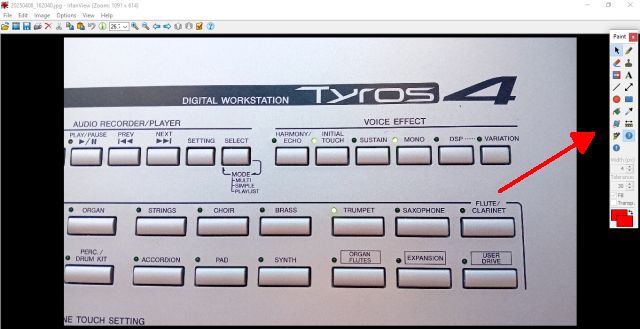
Here they are again, enlarged so you can see what they are.

If you hover your mouse over any one of the above (in the program, not my picture!), a box comes up explaining what each tool is .. and what it’s used for. A left-click chooses that option .. and for some of them, a right-click gives other options for you to choose (eg. for the ‘arrow’ one, if you want the arrow on the left of the line you are dragging; the right of the line; or an arrow at both ends of the line).
The Selection Tool is the one highlighted top left, and is used for ‘Cropping’ the image. You click and hold on your image, dragging your mouse across the image to create a rectangle round the part of the image you want to keep. Then release. You don’t have to be too accurate in doing this as by putting the mouse over the top of any of the lines (left, right, top or bottom) you get a ‘double-arrow’ which you can click on and drag the line in either direction to where you want it.
What I want from my image is the VOICE EFFECT .. so have put a rectangle round that.

To ‘keep’ what is in that rectangle (ie. Crop the Selection) we need to go to Edit, and then choose Crop selection (Cut out).
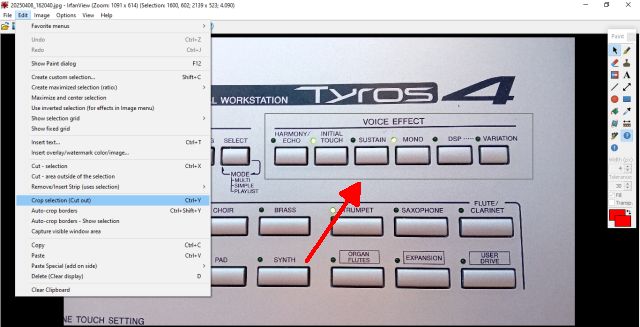
And the resulting image is as below.

The original photograph I took of my Tyros 4 with my mobile was 4080 x 2296 pixels, and this section of it is 2139 x 523. When I take ‘screenshots’ of my Tyros 4 they are 640 pixels wide, so I reckon that should be the maximum width to use in this Forum .. although I’m sure 700 pixels or even 750 pixels would be acceptable. But certainly not 2139!
To reduce the SIZE of the image using IrfanView I need to click on Image at the top, and then Resize/Resample.

In the box that comes up type in the image WIDTH (the HEIGHT is put in automatically to keep the image in proportion).
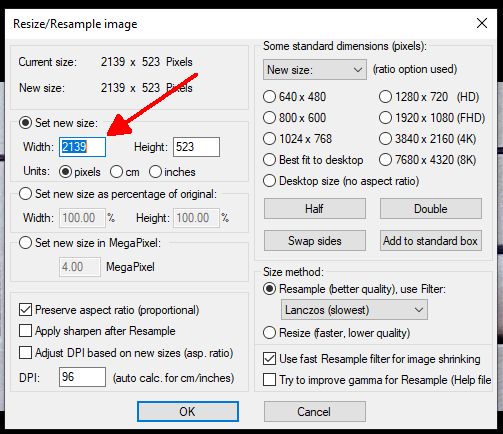
I reckon 600 will fit across the screen and ‘look right’.
Another important factor is the Number of Dots per inch/cm the program uses to determine the width. Best to keep this number always the same.
I have set it at 96.

And this is how my VOICE EFFECT looks on the forum screen.
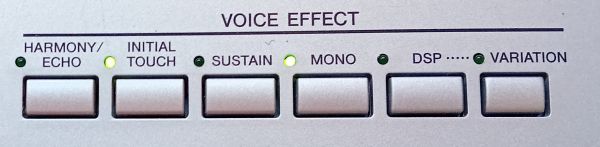
Now all these programs enable you to Rotate 90˚ clockwise or anticlockwise, so a picture you have in Portrait mode can be changed to Landscape. But this program enables one to rotate clockwise or anticlockwise by 0.1 of a degree at a time.
Looking at the above, I reckon my effort to get the photo horizontal was pretty good .. but not perfect! So I shall rotate this image clockwise by 0.3 of a degree.
To do this I click on Image, then Custom/Fine rotation.

And enter the amount of rotation in steps of 0.1˚. I reckon that to get the image horizontal I need to rotate clockwise 0.3˚.
Plus (+) is CLOCKWISE and Minus (-) is ANTICLOCKWISE. (You don’t need to put the PLUS in for clockwise .. only the MINUS when going anticlockwise).

Then click the OK.
Result below.

What do you reckon? Perfect?
Note that with anything you do in this program, if you are not happy with the result there is an Undo button, which will take you back to the previous step .. and you can use it to go back at least two or three steps.

More to come ...
When putting a picture/image into the Forum there are two basic things to consider.
1. Is the image just showing what it is you are wanting people to look at?
If you are only wanting to show part of a picture, then CROP it ie. “cut out” the section you are wanting to keep.
2. Is the SIZE of the picture appropriate for where you are putting it in your post?
You don’t want the picture to fill the whole screen! So REDUCE the size of it.
When taking ‘screenshots’ of my Tyros 4 the resulting images are 640 pixels wide. I reckon this gives a good ‘viewing area’, so have used this number as my ‘standard’ maximum width.
You can put images/pictures into your post either by linking to a “cloud” where you have your image stored; or upload them directly into your post using the Attachment option. This will be covered in another thread, as the purpose of this topic is to explain what you should be doing to your image before you upload it.
There are several programs (Apps) you can use to manipulate your pictures.
The one I use is IrfanView, which was recommended to me by a friend of mine. It’s FREE, and does all the things I want it to do, which I find many of these programs do not enable you to do eg. Rotate in 0.1 degree steps left or right to get the picture perfectly horizontal; insert arrows at any angle to draw attention to the points you are trying to make (as above).
The program is Windows based. If you want to try it, you can do a Google Search (for irfanview); or go directly to their website by clicking the LINK below and downloading it.
I have the 4.72, 64 bit version.
https://www.irfanview.com/
When you first load IrfanView, this is what you see:
I have a picture of a section of my Tyros 4 which I wish to put into a post, so I first click on File (at the top), and then Open.
I get the folders on my laptop showing, so select the one I want ...
... and click Open.
My picture then shows on the screen.
Once the picture is loaded in I need to get up the ‘tools’ I need so I can do things with the image. To get them showing, it’s Edit, and then click on Show Paint dialog.
And all the ‘tools’ I need to do things are showing on the right.
Here they are again, enlarged so you can see what they are.
If you hover your mouse over any one of the above (in the program, not my picture!), a box comes up explaining what each tool is .. and what it’s used for. A left-click chooses that option .. and for some of them, a right-click gives other options for you to choose (eg. for the ‘arrow’ one, if you want the arrow on the left of the line you are dragging; the right of the line; or an arrow at both ends of the line).
The Selection Tool is the one highlighted top left, and is used for ‘Cropping’ the image. You click and hold on your image, dragging your mouse across the image to create a rectangle round the part of the image you want to keep. Then release. You don’t have to be too accurate in doing this as by putting the mouse over the top of any of the lines (left, right, top or bottom) you get a ‘double-arrow’ which you can click on and drag the line in either direction to where you want it.
What I want from my image is the VOICE EFFECT .. so have put a rectangle round that.
To ‘keep’ what is in that rectangle (ie. Crop the Selection) we need to go to Edit, and then choose Crop selection (Cut out).
And the resulting image is as below.
The original photograph I took of my Tyros 4 with my mobile was 4080 x 2296 pixels, and this section of it is 2139 x 523. When I take ‘screenshots’ of my Tyros 4 they are 640 pixels wide, so I reckon that should be the maximum width to use in this Forum .. although I’m sure 700 pixels or even 750 pixels would be acceptable. But certainly not 2139!
To reduce the SIZE of the image using IrfanView I need to click on Image at the top, and then Resize/Resample.
In the box that comes up type in the image WIDTH (the HEIGHT is put in automatically to keep the image in proportion).
I reckon 600 will fit across the screen and ‘look right’.
Another important factor is the Number of Dots per inch/cm the program uses to determine the width. Best to keep this number always the same.
I have set it at 96.
And this is how my VOICE EFFECT looks on the forum screen.
Now all these programs enable you to Rotate 90˚ clockwise or anticlockwise, so a picture you have in Portrait mode can be changed to Landscape. But this program enables one to rotate clockwise or anticlockwise by 0.1 of a degree at a time.
Looking at the above, I reckon my effort to get the photo horizontal was pretty good .. but not perfect! So I shall rotate this image clockwise by 0.3 of a degree.
To do this I click on Image, then Custom/Fine rotation.
And enter the amount of rotation in steps of 0.1˚. I reckon that to get the image horizontal I need to rotate clockwise 0.3˚.
Plus (+) is CLOCKWISE and Minus (-) is ANTICLOCKWISE. (You don’t need to put the PLUS in for clockwise .. only the MINUS when going anticlockwise).
Then click the OK.
Result below.
What do you reckon? Perfect?
Note that with anything you do in this program, if you are not happy with the result there is an Undo button, which will take you back to the previous step .. and you can use it to go back at least two or three steps.
More to come ...
It's all about the music!
![[-]](https://chellos-keyboard-players-club.com/images/collapse.png)