


07-08-2025, 11:28 PM
(This post was last modified: 10-05-2025, 07:02 PM by Hugh Wallington.)
Adding ATTACHMENTS to your post in the Forum
To add an Attachment to a post, scroll down to below the posting box and click on the words ...
Click or drop some files here to upload ...

When clicking on these words you will be shown the Folders on your computer so you can select the ones you wish to upload.
Not all files can be uploaded as ATTACHMENTS. Look at the FILE ENDING and if it’s one of the ones Chello has listed below, then it’ll upload OK.
https://chellos-keyboard-players-club.co...d-max-size
If not, Chello suggests ZIPPING the files and uploading the resulting .zip file, as that is one of the allowed attachments.
Steps to Zip Files in Windows 10/11:
Locate the file(s) or folder(s) you want to compress.
Select the file(s):
For a single file or folder, left-click it and it will be highlighted.

For files in a ‘block’ click on the first one (left-click), press and hold the SHIFT key and then click on the last one.
The whole block will be highlighted.

For multiple files that are not in a ‘block’, click the first file, then hold down the Ctrl key and click each file you want to include.

Next:
Right-click on one of the selected items.
Hover over "Send to" .
Select "Compressed (zipped) folder" .

A new zip file, with the name of one of the original item(s), will be created in the same folder.

If the NAME given does not adequately represent the group of files you have just zipped up, then RENAME the file to something more appropriate.
You now have a ZIP file which you can upload as an Attachment.
I have had to do this for my Living Doll topic as I wanted Members to be able to try the REGISTRATION I had used to play it. There are two VOICES that are not ‘default’ Voices on my Tyros 4, and in order for the REGISTRATION to work they have to be included in the setup. Unfortunately, VOICES with endings .vce and .swv are not in the Attachment List so I was not able to make these Voices available directly in an Attachment.
Below is the resulting ZIP file I have uploaded as an ATTACHMENT, which includes those two voices.
 Living Doll2.S067.zip (Size: 10.22 KB / Downloads: 77)
Downloading and UNIPPING a ZIP file in Windows 10/11
First create a FOLDER on your computer where you can download the ZIP file to.
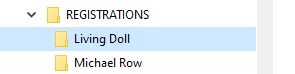
Click on the Attachment showing in the forum post to download it.
Select the Folder you have just created as the place to put it.

If you look just underneath the folder you have just created you will see the ZIP file showing there as well as on the right.

Click on that one on the left to highlight it and all the ZIPPED files will show on the right, as shown by the blue arrow (these are not yet Extracted).

Now click on Extract all and you will be asked where to extract them to.


Or, as the whole purpose of this is to get the files onto a Memory Stick so we can load them into our keyboard, we could extract the files directly to the Memory Stick. Then we won’t have to COPY and PASTE the files over.

Hugh
To add an Attachment to a post, scroll down to below the posting box and click on the words ...
Click or drop some files here to upload ...
When clicking on these words you will be shown the Folders on your computer so you can select the ones you wish to upload.
Not all files can be uploaded as ATTACHMENTS. Look at the FILE ENDING and if it’s one of the ones Chello has listed below, then it’ll upload OK.
https://chellos-keyboard-players-club.co...d-max-size
If not, Chello suggests ZIPPING the files and uploading the resulting .zip file, as that is one of the allowed attachments.
Steps to Zip Files in Windows 10/11:
Locate the file(s) or folder(s) you want to compress.
Select the file(s):
For a single file or folder, left-click it and it will be highlighted.
For files in a ‘block’ click on the first one (left-click), press and hold the SHIFT key and then click on the last one.
The whole block will be highlighted.
For multiple files that are not in a ‘block’, click the first file, then hold down the Ctrl key and click each file you want to include.
Next:
Right-click on one of the selected items.
Hover over "Send to" .
Select "Compressed (zipped) folder" .
A new zip file, with the name of one of the original item(s), will be created in the same folder.
If the NAME given does not adequately represent the group of files you have just zipped up, then RENAME the file to something more appropriate.
You now have a ZIP file which you can upload as an Attachment.
I have had to do this for my Living Doll topic as I wanted Members to be able to try the REGISTRATION I had used to play it. There are two VOICES that are not ‘default’ Voices on my Tyros 4, and in order for the REGISTRATION to work they have to be included in the setup. Unfortunately, VOICES with endings .vce and .swv are not in the Attachment List so I was not able to make these Voices available directly in an Attachment.
Below is the resulting ZIP file I have uploaded as an ATTACHMENT, which includes those two voices.
Living Doll2.S067.zip (Size: 10.22 KB / Downloads: 77)
Downloading and UNIPPING a ZIP file in Windows 10/11
First create a FOLDER on your computer where you can download the ZIP file to.
Click on the Attachment showing in the forum post to download it.
Select the Folder you have just created as the place to put it.
If you look just underneath the folder you have just created you will see the ZIP file showing there as well as on the right.
Click on that one on the left to highlight it and all the ZIPPED files will show on the right, as shown by the blue arrow (these are not yet Extracted).
Now click on Extract all and you will be asked where to extract them to.
Or, as the whole purpose of this is to get the files onto a Memory Stick so we can load them into our keyboard, we could extract the files directly to the Memory Stick. Then we won’t have to COPY and PASTE the files over.
Hugh
It's all about the music!
![[-]](https://chellos-keyboard-players-club.com/images/collapse.png)


