Posts: 352
Threads: 90
Likes Received: 1,357 in 352 posts
Likes Given: 672
Joined: Apr 2024
What keyboard model(s) do you have ?: Tyros 4
Location: Weston-super-Mare
Bio: I am a 'self taught' home organ and keyboard player. Many years ago I played piano in a couple of 'bands' (one a Scottish Country Dance Band). We all had the chords of the piece we were playing written out in front of us, and as a result I have never felt the need to 'read music'. People say I 'play by ear', but a better description would be that I 'play by chords'.
Gender: Male
Country: 
12-20-2024, 09:32 PM
(This post was last modified: 10-06-2025, 05:11 PM by Hugh Wallington.)
A few things you can do with Audacity
Audacity is a program (App) which is well worth having on your computer, and I use it all the time for all sorts of things. In this thread I intend to list some of these.
Audacity is run by the Muse Group. Muse Group is a software and education company specialised in making tools and resources for music composition, music production and music education. Established in 1998 as Ultimate Guitar, it became Muse Group in 2021 following several acquisitions such as MuseScore and Audacity.
Audacity is the world’s most popular free software for recording and editing audio.
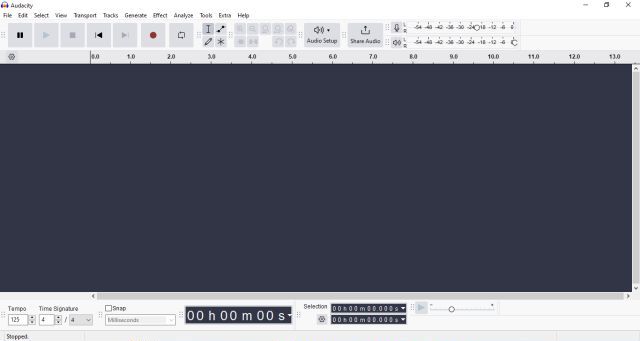
When you launch Audacity this is the screen you get.
 Of course Audacity can be used for RECORDING, and this is something I had to do when I had my Yamaha AR80 organ, as the recording had to be done ‘live’ from the LINE OUT under the Lower Manual of the organ, via an AUDIO INTERFACE and into a USB Port in my laptop. These days, our keyboards record directly to WAV (or MP3).
WAV and MP3 are both audio file formats (ie. you can listen to them on any device), but they differ in a few key ways.
MP3 files are ‘compressed’ ie. they do not contain all the music information .. but as a result are much smaller than WAV files. MP3 files are typically around 4MB, whereas WAV files are in the region of 40MB. So MP3 files are best if you are ‘streaming’ the music from the internet; whereas if you are making serious recordings in a recording studio you would want to use WAV files.
In Audacity, you can set the QUALITY of an MP3 file, and quite honestly, most people would not hear the difference between a WAV file and a ‘CD Quality’ MP3 just by listening to it (including me).
My Tyros 4 records to WAV, so the first thing I always use Audacity for is to convert my WAV file to MP3.
1. Converting WAV files to MP3.
Of course Audacity can be used for RECORDING, and this is something I had to do when I had my Yamaha AR80 organ, as the recording had to be done ‘live’ from the LINE OUT under the Lower Manual of the organ, via an AUDIO INTERFACE and into a USB Port in my laptop. These days, our keyboards record directly to WAV (or MP3).
WAV and MP3 are both audio file formats (ie. you can listen to them on any device), but they differ in a few key ways.
MP3 files are ‘compressed’ ie. they do not contain all the music information .. but as a result are much smaller than WAV files. MP3 files are typically around 4MB, whereas WAV files are in the region of 40MB. So MP3 files are best if you are ‘streaming’ the music from the internet; whereas if you are making serious recordings in a recording studio you would want to use WAV files.
In Audacity, you can set the QUALITY of an MP3 file, and quite honestly, most people would not hear the difference between a WAV file and a ‘CD Quality’ MP3 just by listening to it (including me).
My Tyros 4 records to WAV, so the first thing I always use Audacity for is to convert my WAV file to MP3.
1. Converting WAV files to MP3.
The WAV file from my Tyros 4 is on a Memory Stick and I can load this directly from the Memory Stick into Audacity.
Click the File tab , and in the drop-down box choose Open... .
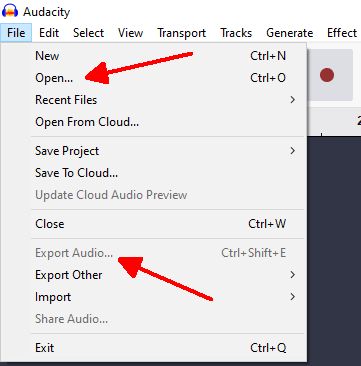
In the next box, select your WAV file and click Open.

The WAVEFORM of this will now be showing in the black area of Audacity’s opening screen.

To ‘save’ this as an MP3, the expression is to ‘ Export Audio...’ (see screenshot above) .. so click on that.
Next. Choose Export to computer so then you’ve got it. You can share it with their ‘cloud’ later, uploading directly from your computer.
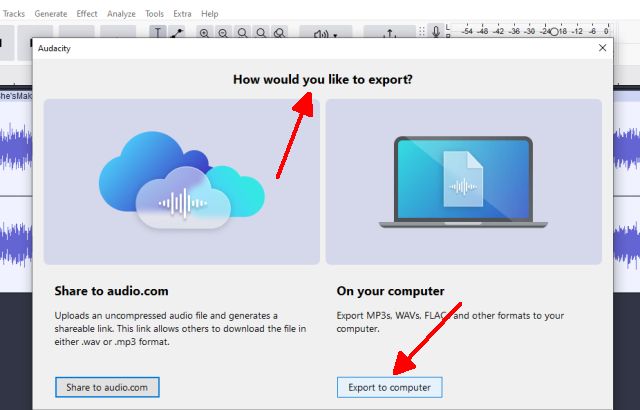
At this point you can choose the quality of your MP3, and also select the folder where the file should be put. I have a folder specifically for all my Tyros 4 recordings (and another one for all my DEMOS!).
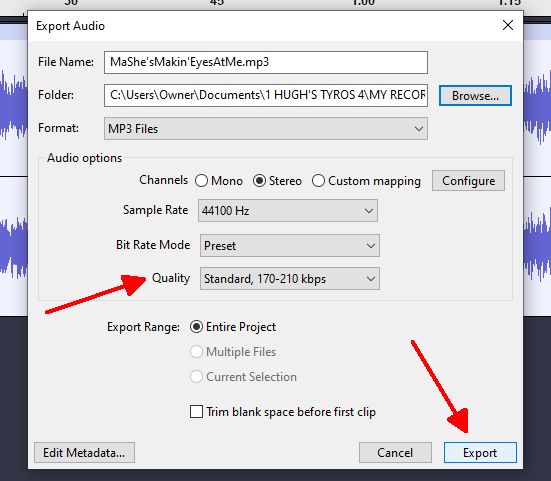
As far as the quality is concerned, leave it on the ‘default’ as showing above.
This is quite sufficient for everyone to listen to.
If you do click on that drop-down box, the other options are as below!
 More things to come.
It's all about the music!
![[-]](https://chellos-keyboard-players-club.com/images/collapse.png) The following 11 users Like ⚖Hugh Wallington's post:11 users Like ⚖Hugh Wallington's post
• ✪aprilla (12-21-2024), ♔Arius (12-20-2024), ✪blacky5599 (03-12-2026), ♔Chello (12-20-2024), ⚖Chris (05-20-2026), ⚅Graham UK (12-21-2024), ♝jucami (12-21-2024), ♬OrganPlayer (12-23-2024), ✪Roshure (12-20-2024), ✪srmf (12-20-2024), ⚖whitecolin1 (12-20-2024)
The following 11 users Like ⚖Hugh Wallington's post:11 users Like ⚖Hugh Wallington's post
• ✪aprilla (12-21-2024), ♔Arius (12-20-2024), ✪blacky5599 (03-12-2026), ♔Chello (12-20-2024), ⚖Chris (05-20-2026), ⚅Graham UK (12-21-2024), ♝jucami (12-21-2024), ♬OrganPlayer (12-23-2024), ✪Roshure (12-20-2024), ✪srmf (12-20-2024), ⚖whitecolin1 (12-20-2024)
Posts: 381
Threads: 12
Likes Received: 1,024 in 386 posts
Likes Given: 2,177
Joined: Nov 2024
What keyboard model(s) do you have ?: PSR S900 & SX720
Location: Ireland
Bio: Style & Midi collector
Gender: Female
Country: 
12-21-2024, 04:18 AM
(This post was last modified: 12-21-2024, 12:06 PM by Hugh Wallington.)
Great program, I remember when it was new! I haven't used it for quite some time but it's still installed on my computer. I spent a lot of time with it making mp3s from CDs LOL Perhaps with the audio capabilities of the SX720 I might enjoy playing with it again.
Posts: 352
Threads: 90
Likes Received: 1,357 in 352 posts
Likes Given: 672
Joined: Apr 2024
What keyboard model(s) do you have ?: Tyros 4
Location: Weston-super-Mare
Bio: I am a 'self taught' home organ and keyboard player. Many years ago I played piano in a couple of 'bands' (one a Scottish Country Dance Band). We all had the chords of the piece we were playing written out in front of us, and as a result I have never felt the need to 'read music'. People say I 'play by ear', but a better description would be that I 'play by chords'.
Gender: Male
Country:
12-21-2024, 07:32 PM
(This post was last modified: 10-06-2025, 05:45 PM by Hugh Wallington.)
2. Using Audacity to NORMALIZE a waveform.
I remember when we used to use meters to monitor recordings. Keep an eye on the movement of those needles, as if they went up into the red it meant that the sound would be overmodulated, and would be DISTORTED. Inevitably, this would happen in the last few bars of recording a piece when everything was getting louder, and then there was no option but to record the whole piece again. If you had the volumes too low, it would be too quiet when listening to it. So one had to judge what the recording levels should be to get an acceptable volume without going into the red.
Things are not a lot different now, as on our keyboards we do have a recording level monitor .. like the one below (screenshot from my Tyros 4).
 By default, this is set at a recording level of 90 (which you can change), and the idea is to keep the recording levels in the green and the yellow areas, as the next level up is red, which wll cause ‘clipping’ of the waveform.
Clipping is a type of audio distortion that happens when an audio signal is too loud for a system to handle, causing parts of the waveform to be cut off. This can result in a harsh, distorted sound.
By default, this is set at a recording level of 90 (which you can change), and the idea is to keep the recording levels in the green and the yellow areas, as the next level up is red, which wll cause ‘clipping’ of the waveform.
Clipping is a type of audio distortion that happens when an audio signal is too loud for a system to handle, causing parts of the waveform to be cut off. This can result in a harsh, distorted sound.
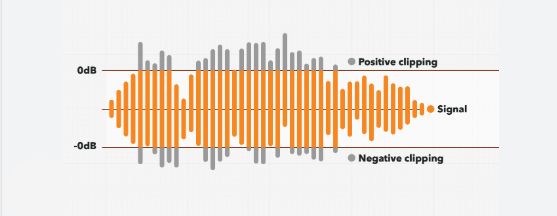 Now Audacity has a feature called NORMALIZE, whereby you can ‘under record’ and then get audacity to adjust your waveform to ‘best fit’ between those upper and lower limits, which it does in proportion ie. it keeps the ‘balance’ of the sound. This is not the same as just making the sound louder.
So when I have made a recording I put it into Audacity so I can actually see how I have done with my recording levels, and if they are too low, put them up.
Example below:
Now Audacity has a feature called NORMALIZE, whereby you can ‘under record’ and then get audacity to adjust your waveform to ‘best fit’ between those upper and lower limits, which it does in proportion ie. it keeps the ‘balance’ of the sound. This is not the same as just making the sound louder.
So when I have made a recording I put it into Audacity so I can actually see how I have done with my recording levels, and if they are too low, put them up.
Example below:
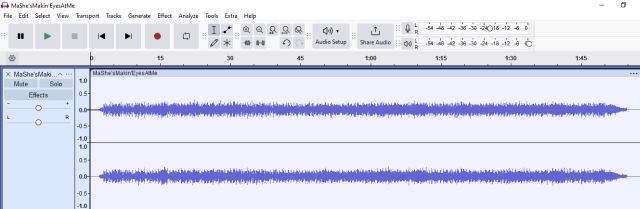 I’m nowhere near those upper and lower limits.
Below is a DEMO of part of this song so you can hear how low the volume is.
https://app.box.com/s/ed47h3x1i99oveydev0ocuaemgtb0mpo
To get Audacity to Normalize my recording, I first have to select an area for Audacity to work on. In this case, it’s the whole track. So Select All. There are several shortcuts in Audacity (they tell you what they are in the drop-down boxes) and the one for Select All is Ctrl+A (ie. hold down the Ctrl button and press the letter A).
I’m nowhere near those upper and lower limits.
Below is a DEMO of part of this song so you can hear how low the volume is.
https://app.box.com/s/ed47h3x1i99oveydev0ocuaemgtb0mpo
To get Audacity to Normalize my recording, I first have to select an area for Audacity to work on. In this case, it’s the whole track. So Select All. There are several shortcuts in Audacity (they tell you what they are in the drop-down boxes) and the one for Select All is Ctrl+A (ie. hold down the Ctrl button and press the letter A).
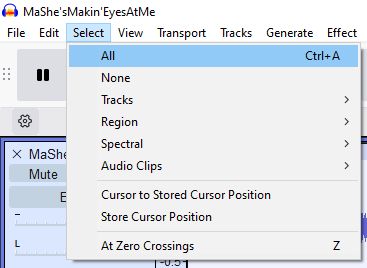 The area Audacity will be working on now has a blue background.
 Next, click on the Effect tab, and in the drop-down box choose Normalize... .
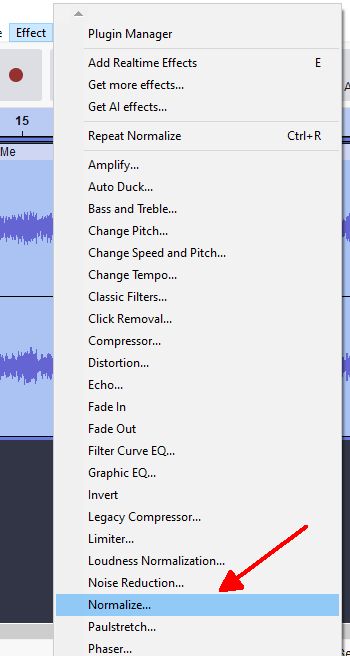 We now get these options, and have to choose at what level to Normalize the waveform to. Zero (0) will stretch that waveform right to the limit. If there had been ‘spikes’ in my recording I would have chosen 0, but as my waveform is fairly level and pretty solid and I don’t want it to be ‘over loud’, I am choosing -2 (minus 2) to Normalize to.
 Then click Apply.
Click on the ‘Skip to Start (Home)’ button (indicated by the red arrow) to get rid of the blue background.
That recording level looks better!
Then click Apply.
Click on the ‘Skip to Start (Home)’ button (indicated by the red arrow) to get rid of the blue background.
That recording level looks better!
 Have a listen to how this sounds now.
https://app.box.com/s/0awnqtbvw9eehq9mv2573o2jmjm6dd1p
I use Normalize in Audacity quite regularly, not only to check out my recording levels, but also to ‘up’ the sound a bit when I am doing DEMOS. Eg. A ‘riff’ played on a guitar as a backing PART is not very loud (it has to blend in with the other instruments) so if I want you to hear it I have to up its volume.
Below is the waveform of a recording that has gone badly into the red from beginning to end. By putting this into Audacity one can see (as well as hear) what is going on. The distortion is appalling! No option in this case other than to record the piece again.
Have a listen to how this sounds now.
https://app.box.com/s/0awnqtbvw9eehq9mv2573o2jmjm6dd1p
I use Normalize in Audacity quite regularly, not only to check out my recording levels, but also to ‘up’ the sound a bit when I am doing DEMOS. Eg. A ‘riff’ played on a guitar as a backing PART is not very loud (it has to blend in with the other instruments) so if I want you to hear it I have to up its volume.
Below is the waveform of a recording that has gone badly into the red from beginning to end. By putting this into Audacity one can see (as well as hear) what is going on. The distortion is appalling! No option in this case other than to record the piece again.
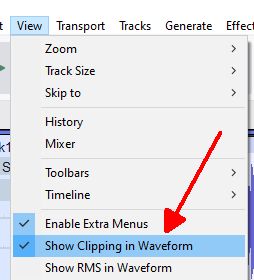
 The ‘default’ of the Audacity program is to show the ‘clipping’ as red lines, but if for any reason the waveform is showing all blue and you feel there should be some red lines showing, you will have to turn this feature ON. It’s an option in the tab View.
Hugh
More things to come.
It's all about the music!
Posts: 381
Threads: 12
Likes Received: 1,024 in 386 posts
Likes Given: 2,177
Joined: Nov 2024
What keyboard model(s) do you have ?: PSR S900 & SX720
Location: Ireland
Bio: Style & Midi collector
Gender: Female
Country:
I remember doing stuff like this, first with Wavelab then with a free program called Wavosaur. I think this was pretty much a copy of Wavelab, but free. I'd have been putting CDs then DVDs together... there aren't even drives for them built in anymore!
Audacity was just beginning to catch on around then, they've come a long way with it.
Posts: 352
Threads: 90
Likes Received: 1,357 in 352 posts
Likes Given: 672
Joined: Apr 2024
What keyboard model(s) do you have ?: Tyros 4
Location: Weston-super-Mare
Bio: I am a 'self taught' home organ and keyboard player. Many years ago I played piano in a couple of 'bands' (one a Scottish Country Dance Band). We all had the chords of the piece we were playing written out in front of us, and as a result I have never felt the need to 'read music'. People say I 'play by ear', but a better description would be that I 'play by chords'.
Gender: Male
Country:
12-26-2024, 10:58 PM
(This post was last modified: 10-06-2025, 08:02 PM by Hugh Wallington.)
3. How to Increase/Decrease the TEMPO of an MP3 using Audacity.
I remember once going to listen to a keyboard acquaintance of mine playing at a local pub. He said to me that a lot of players play their pieces much too fast .. almost as if they are in a rush to finish and get home! So he made sure he knew the TEMPO he should play each song at and stuck to it. I suppose on the other side of the coin one could play a piece too slowly .. and then it will 'drag' and people will be saying to 'wind it up'!
I find that I often play songs too slowly, particularly if there are a lot of complicated chord changes. When I was in the Scottish Country Dance Band the Piano Accordionist seemed to have fingers made of rubber. How he managed to play those melodies for Scottish Country Dancing I shall never know! There is no way my fingers will move that fast! So if I want to play one of those Scottish Country Dance numbers, the only way I can do it is to play it very slowly .. and then speed it up afterwards.
Here's an example of me doing this. The tune I wanted to play is a real favourite of mine called The Mason's Apron, and I have incorporated this into a Medley. Mind you, playing that number 'slowly' worked a treat .. but the other two songs in the medley I found almost impossible to play 'slowly' as these are songs I play at normal speed and my brain is not geared up to do that!
First, listen to how this sounds 'played slowly'. Haven't put the whole track up .. just what I have referred to above.
https://app.box.com/s/sz15a8i0j7cxj2ukpzdrt9ww3wipy27u
So having recorded this medley at this speed I will load the MP3 into Audacity and speed up the Tempo.
First, we have to select the part of the waveform we want Audacity to work on.
In this case, it's the whole MP3 .. so Select All.
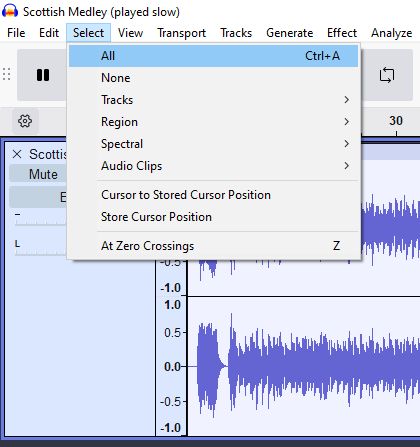 This turns the background to BLUE.
Audacity works on areas that have a blue background, so whatever it is you want Audacity to do, make sure that section is blue.
This turns the background to BLUE.
Audacity works on areas that have a blue background, so whatever it is you want Audacity to do, make sure that section is blue.
 We then need to find Change Tempo..., which is in Effect.
 A drop-down box comes up.
A bit of experimenting needed here.
Let's try 100% ie. double the speed.
A drop-down box comes up.
A bit of experimenting needed here.
Let's try 100% ie. double the speed.

Note that I have ticked Use high quality stretching.
Then click Apply.
 Have a listen, and see what you think.
https://app.box.com/s/tinsiuz5nssl1pd6ivxzkkwv3nbyl05a
Don't think so!
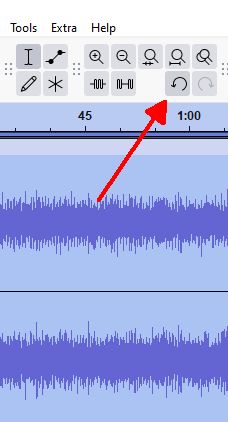
Click the UNDO button to go back to where we were before, and set it up again.
This time I'll try 25%.

Reckon that's about right. Have a listen.
https://app.box.com/s/0a01od3qjtf5o8nam8ezj8buz2ztcbe2
By the way, if you want to make a piece run more slowly, you have to put a MINUS number in there.
Eg. -10.000.
In this example above I have used the Percentage Change option.
Here’s another example of why you might want to speed up the TEMPO, and this time I shall do it using Beats per minute rather than Percent Change.
A White Sports Coat (And A Pink Carnation).
This was sung by Marty Robbins. I have set the METRONOME going on my keyboard so I can check the TEMPO songs are being played at.
The below is at 114bpm (beats per minute).
Now this is a number we used to play in the 50s in the band, and I have recorded it on my AR80 organ 'as I remembered it'.
Checking the tempo with the Metronome, I am playing it at 104bpm.
So a bit slower than it should be played at.
https://app.box.com/s/ztzuynaq9wf2y9llixibf2urj7jygiix
A Member of the Tierce-de-Picardie Forum called tyritzer, who was a 'singer' and had a Tyros 4 setup, sent me his 'take' on this piece, which you can listen to below.
https://app.box.com/s/fa43dvpt2g0ikk4ddkyvnazsnzzy7p2u
Love the sound of that! He is singing/playing at 126bpm.
And I have found another video on YouTube of Marty Robbins singing it.
This time he is singing it at 136bpm.
You have to come to the conclusion that there is no 'correct Tempo'. You play it/sing it as you wish to hear it.
But I did feel that the way I played the piece at 104bpm was 'dragging', and needed 'winding up'. So I shall use Audacity to speed it up a bit.
First, I have loaded my original recording into Audacity.
Then, as I want Audacity to change the Tempo of the whole piece, gone for Select, All which changed the background of the waveform to BLUE.
Then the Change Tempo, in Effect.
Doing a 'Beats per minute' change rather than a 'Percent Change', I reckoned that 120bpm would suit the piece best for the way I had played it.
Remember, there is an UNDO button (the circle above, with the anticlockwise arrow) for you to click on if you want to go back to what you had before.
 Note that I have ticked Use high quality stretching.
Then clicked Apply.
Note that I have ticked Use high quality stretching.
Then clicked Apply.
This is what my piece sounds like now, having speeded it up a bit.
Have a listen and see what you think.
https://app.box.com/s/7l2tmnyle09lhjt3ldnrvmkmrivh0sm7
This time it was not a question of not being able to play it at this speed .. but I didn't want to sit and record it again. And I didn't have a MIDI recording of it so couldn't have speeded it up that way.
All in all, I do find this feature in Audacity very useful. Some songs that I recorded a while ago I now reckon were recorded a tad too slow, and when I listen to them I find they 'drag' a bit. So no problem to 'up' the tempo by about 5% to 10% to make them more listenable.
Hugh
It's all about the music!
Posts: 352
Threads: 90
Likes Received: 1,357 in 352 posts
Likes Given: 672
Joined: Apr 2024
What keyboard model(s) do you have ?: Tyros 4
Location: Weston-super-Mare
Bio: I am a 'self taught' home organ and keyboard player. Many years ago I played piano in a couple of 'bands' (one a Scottish Country Dance Band). We all had the chords of the piece we were playing written out in front of us, and as a result I have never felt the need to 'read music'. People say I 'play by ear', but a better description would be that I 'play by chords'.
Gender: Male
Country:
01-05-2025, 10:03 PM
(This post was last modified: 10-06-2025, 08:14 PM by Hugh Wallington.)
4. Removing SILENCE from the beginning of an MP3.
You may find that when making a recording there is a period of ‘silence’ before the piece starts playing. The listener needs to hear the start of the song within a couple of seconds .. and if the gap is too long they may even give up on trying to listen to it.
DEMO MP3 of this .. click the below:
https://app.box.com/s/5p8tlregvjly45o1bql2cigz5khcqdkb
Waveform of the above from Audacity.
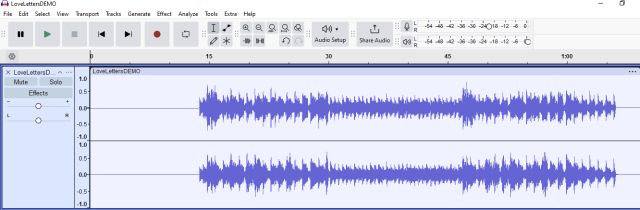
You can see that ‘silence’ at the beginning.
To remove it, click with the mouse a short distance to the left of the waveform, hold the mouse button down and drag all the way to the left. This highlights with a blue background the area you want Audacity to work on.

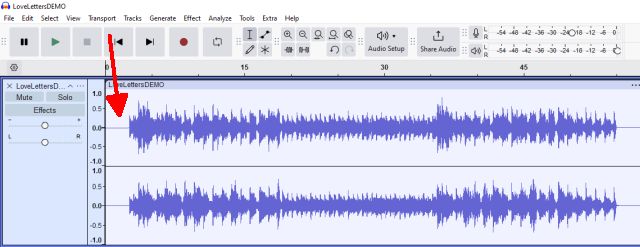
Don’t forget that when working with Audacity, if you want to UNDO what you have just done .. click the semicircle with the arrow going to the left (indicated with the red arrow). Click again, and you’ll go back two steps. If you change your mind and want to go forward to where you were, to the right you will see a semicircle with an arrow going to the right. Click on that and you’ll ‘undo’ what you have just ‘undone’.
You can now DELETE this highlighted area by going to the Edit tab at the top and clicking on Delete in the drop-down box.

That looks better!
 Next, to save your song go to the File tab at the top and click on Export Audio... (to your computer) in the drop-down box.
Replace the original.
Have a listen.
https://app.box.com/s/35son6axlff8vp89epr5n5vexcska2dp
Hugh
More to come using the lovelettersdemo2 file above.
Next, to save your song go to the File tab at the top and click on Export Audio... (to your computer) in the drop-down box.
Replace the original.
Have a listen.
https://app.box.com/s/35son6axlff8vp89epr5n5vexcska2dp
Hugh
More to come using the lovelettersdemo2 file above.
It's all about the music!
Posts: 144
Threads: 26
Likes Received: 376 in 144 posts
Likes Given: 541
Joined: Mar 2023
What keyboard model(s) do you have ?: Yamahasx900
Location: Newcastle
Bio: Hoping to learn form you guys
Gender: Male
Country:
01-06-2025, 05:10 PM
(This post was last modified: 09-14-2025, 06:34 PM by Hugh Wallington.)
Hi Hugh,
Audacity is certainly a very handy tool and your in-depth explanation of its ability is very useful as there has been few updates of late
Brian
Posts: 352
Threads: 90
Likes Received: 1,357 in 352 posts
Likes Given: 672
Joined: Apr 2024
What keyboard model(s) do you have ?: Tyros 4
Location: Weston-super-Mare
Bio: I am a 'self taught' home organ and keyboard player. Many years ago I played piano in a couple of 'bands' (one a Scottish Country Dance Band). We all had the chords of the piece we were playing written out in front of us, and as a result I have never felt the need to 'read music'. People say I 'play by ear', but a better description would be that I 'play by chords'.
Gender: Male
Country:
01-07-2025, 03:37 AM
(This post was last modified: 10-06-2025, 11:36 PM by Hugh Wallington.)
5. Fade In and Fade Out using Audacity.
When you are recording a piece it is very tempting to press the STOP button before the last sound of the recording has died away. That is just going to ruin what is otherwise a perfect recording! But all is not lost as you can use Audacity to ‘Fade Out’ the end. In the DEMO above I could do with having a ‘Fade In’ at the beginning, and a ‘Fade Out’ at the end.
A reminder of what this DEMO sounded like.
https://app.box.com/s/35son6axlff8vp89epr5n5vexcska2dp
First, I shall load LoveLettersDEMO2.mp3 into Audacity.
 We need to highlight with a blue background the first section of the waveform .. so click with the mouse just to the left of the start of the waveform. But we have to be a little more precise than we have been doing this as we want the line to be right at the start of the waveform .. so get as close as you can.
 When you have got your line running down, it can be moved left or right by pressing the left and right buttons on the keypad in the left, right, up & down section. This will just move that vertical line either left or right until you have it in the position you want it .. as close as you can to the waveform without actually touching it.
 Next, to create the blue backing area for Audacity to work on.
You can do this by either holding the SHIFT key down on your keypad while you keep pressing the ‘right arrow’ ...
... or, if you hold your mouse marker in the vicinity of that vertical line you will see a short vertical line with a left or right arrow (or a ‘hand’).
Next, to create the blue backing area for Audacity to work on.
You can do this by either holding the SHIFT key down on your keypad while you keep pressing the ‘right arrow’ ...
... or, if you hold your mouse marker in the vicinity of that vertical line you will see a short vertical line with a left or right arrow (or a ‘hand’).
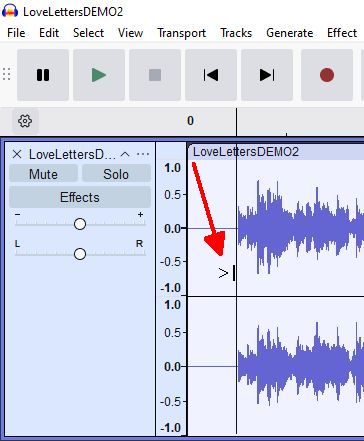 This is telling you that you can now click with the mouse (left-click) and drag the line to the right and let go when you get to where you want to go. How far you go isn’t critical, as you are going to do a ‘fade in’.
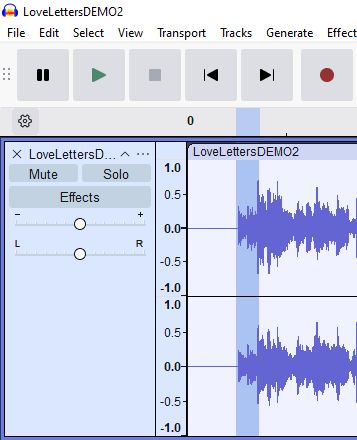 Now you have given Audacity a blue area to work on, go to the tab Effect at the top, and in the drop-down box click on Fade In.

 You can see from the waveform that we now have a ‘fade in’.
Now click just to the right of the waveform at the other end and get as close to the waveform as you can without actually touching it.
You can see from the waveform that we now have a ‘fade in’.
Now click just to the right of the waveform at the other end and get as close to the waveform as you can without actually touching it.
 Drag to the left to create your blue area ...
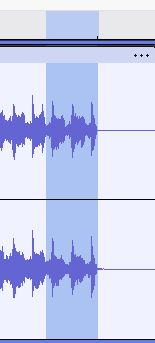 ... then click on the tab Effect at the top and choose Fade Out in the drop-down box.
We now end up with a waveform looking like this .. with a ‘fade in’ at the beginning and a ‘fade out’ at the end.
... then click on the tab Effect at the top and choose Fade Out in the drop-down box.
We now end up with a waveform looking like this .. with a ‘fade in’ at the beginning and a ‘fade out’ at the end.
 To save your song
 go to the File tab at the top and click on Export Audio... (to your computer) in the drop-down box.
Replace the original.
Have a listen.
Sounds better with the music ‘fading in’ and ‘fading out’ at the end.
https://app.box.com/s/eu86kfuaupmhawv31hkor8560fhnz2pk
Note: If you get a bit of a ‘bounce back’ at the end of dong this, it will be because your original ending was a bit ‘raggedy’ and the vertical line you started with had crept into the waveform. What I would do in this case is have youir vertical line well to the right of the waveform and create a blue area running just into the end of the waveform ...
 ... and DELETE this section as explained in my post above (Edit, and Delete from the drop-down box). This time you will be deleting the ‘raggedy bit’ at the end (not silence) .. and this gives you a nice vertical line to do your ‘fade out’ from (and you know there is no sound to the right of this line).
 Maybe a good idea to do this as a first step anyway before doing a Fade Out.
I did have to do this in the example above to get that nice ‘smooth’ fade-out ending you heard.
Hugh
Maybe a good idea to do this as a first step anyway before doing a Fade Out.
I did have to do this in the example above to get that nice ‘smooth’ fade-out ending you heard.
Hugh
It's all about the music!
Posts: 1,087
Threads: 608
Likes Received: 4,574 in 1,085 posts
Likes Given: 1,640
Joined: Jun 2023
What keyboard model(s) do you have ?: Korg Pa5X 76 & Yamaha Tyros 5
Location: Holland
Bio: I am Rob Callenbach, i think the most members know me, as Music writer,
I begin play the keys when i was 4 years old.
i am now 62 years , i go to Organ school for 10 Years , follow 10 years long the theorie of music. I was 8 years long a Organ teacher, i always have write my own music, when i was young i write also my own music , 8 years i think maybe longer i work for different forums, also i work i think 8 years for Mr Chello, And i like my work as a Music writer.
Gender: Male
Country: 
01-07-2025, 07:46 AM
(This post was last modified: 01-07-2025, 07:17 PM by Hugh Wallington.)
I also use this program for my music and wow you know how to Explain it to the people, i am really happy with your words about everything
Also that is a gift not everybody can do that how you do it
I am a big fan of your lessons so i see it and they are very useful for me
i learn a lot from you thanks for it
Posts: 352
Threads: 90
Likes Received: 1,357 in 352 posts
Likes Given: 672
Joined: Apr 2024
What keyboard model(s) do you have ?: Tyros 4
Location: Weston-super-Mare
Bio: I am a 'self taught' home organ and keyboard player. Many years ago I played piano in a couple of 'bands' (one a Scottish Country Dance Band). We all had the chords of the piece we were playing written out in front of us, and as a result I have never felt the need to 'read music'. People say I 'play by ear', but a better description would be that I 'play by chords'.
Gender: Male
Country:
01-07-2025, 03:25 PM
(This post was last modified: 05-19-2026, 08:21 PM by Hugh Wallington.)
Thanks OrganPlayer for your encouraging words. I am not a Music teacher, but used to be a Maths teacher, so have a lifelong experience in explaining things to people.
When I look on YouTube for explanations on how to use Audacity it's always to do with using a microphone on a Mono channel; never music using Stereo.
And another thing that I am well aware of on YouTube. People can earn money on YouTube, and this is geared up to the 'number of clicks' they get on a video. So if you saw two titles on videos, one that said "How to do things in Audacity", and another that said "Never download Audacity to your computer .. it's awful!" .. which video are you more likely to click on? You can't believe half of what you see on YouTube as they are doing it just to get your attention and earn some money for themselves. Rant over!
I have added a Note: to the bottom of my explanation on using Fade In and Fade Out .. so if you didn't see what I said, scroll back up and take a look.
Hugh
Topic continued on Page 2 ...
It's all about the music!
|